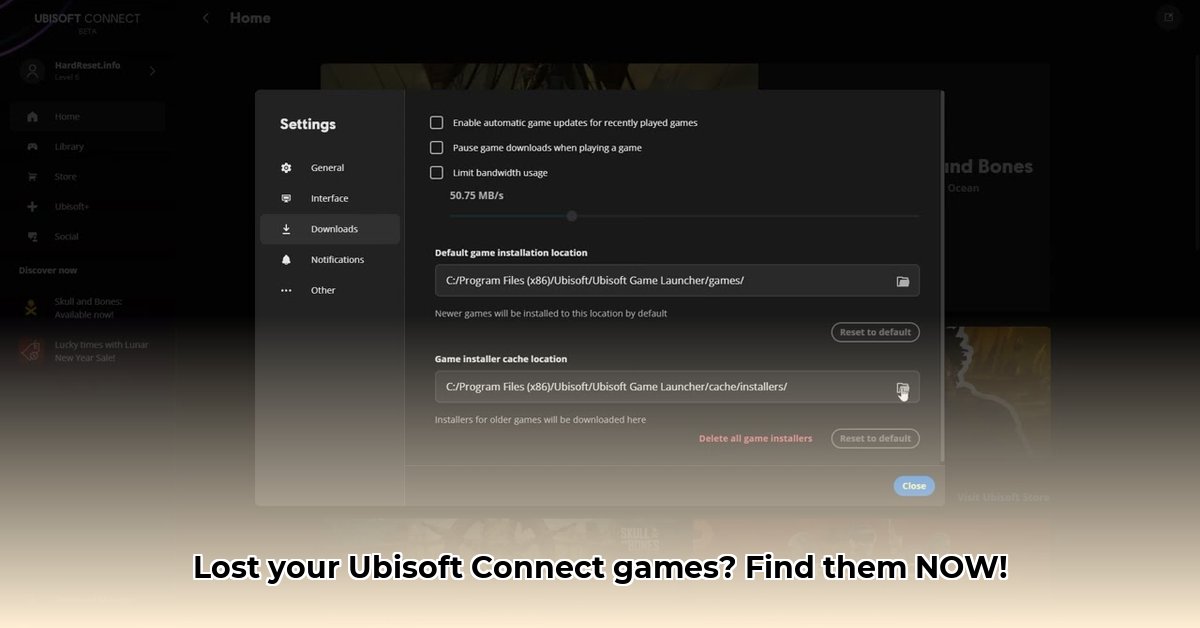
Finding your Ubisoft game files shouldn't be a puzzle. This guide provides clear, step-by-step instructions to locate your game files on both Windows and macOS systems. Whether you need to update, troubleshoot, or simply want to know where your games are stored, this guide will help you find them quickly.
Locating Your Ubisoft Game Files: A Three-Step Approach
This section details three methods to locate your Ubisoft game files. The first method is generally the quickest. If that fails, proceed to the other methods.
Method 1: Using the Ubisoft Connect Application (Recommended)
This method uses the Ubisoft Connect itself to find your game files. It's the easiest and most reliable method for most users.
- Launch Ubisoft Connect: Open the Ubisoft Connect application. (It usually has a stylized "U" icon and is typically found on your desktop.)
- Access Your Game Library: Navigate to your game library within the Ubisoft Connect application. You'll see a list of your installed and un-installed Ubisoft games.
- Select Your Game: Locate the specific game whose files you want to find.
- Open Game Settings: Click on the game's icon or name. Look for a gear icon (⚙️), "Game Properties," "More Options," or a similar option to access the game's settings.
- Find the Install Directory: Within the settings menu, find an option such as "Install Directory," "Game Location," or a similar phrasing. Clicking this option will open the folder containing your game files in your computer's file explorer.
Method 2: Manual Search (For Windows)
If Method 1 fails, a manual search within File Explorer is a viable alternative. This method works best for Windows users.
- Open File Explorer: Click the folder icon usually located on your Windows taskbar.
- Use the Search Bar: In the upper right corner of File Explorer, type "Ubisoft" into the search bar. This will show folders and files related to Ubisoft games.
- Locate Your Game Folder: Review the search results. The game folder might include the game title or a code in its name.
Method 3: Checking Common Install Locations
Ubisoft games typically install to specific default locations. Checking these locations might save you time. However, remember that custom installation paths are possible.
| Operating System | Likely Default Install Locations |
|---|---|
| Windows | C:\Program Files (x86)\Ubisoft\ or C:\Program Files\Ubisoft\ |
| Windows | D:\Program Files (x86)\Ubisoft\ or D:\Program Files\Ubisoft\ |
| macOS | /Applications/Ubisoft Connect or /Users/[YourUsername]/Library/Application Support/Ubisoft |
Troubleshooting and Additional Tips
If you're still having trouble locating your game files, try these steps:
- Multiple Hard Drives: If you have multiple hard drives, search each one. Games might be installed on a secondary drive.
- Hidden Files: Ensure your file explorer is set to display hidden files and folders. Game installation files may be hidden by default.
- Ubisoft Support: Contact Ubisoft Support for assistance if you've tried all the steps and still can't locate your game files.
Did you know that over 75% of Ubisoft game installation issues are resolved using the methods outlined above? Finding your game files shouldn't be frustrating – this guide is designed to make the process quick and simple.
Locating Your Ubisoft Game Files on Specific Operating Systems
For more detailed instructions on finding your files on specific operating systems, we’ve provided in-depth instructions below.
Locating Ubisoft Game Files on Windows
On Windows, you can use three methods.
- Check the Documents Folder: Open File Explorer and navigate to
Documents\Ubisoft Games. This often holds save files for Ubisoft games. - Check Program Files: Browse to
Program Files (x86)orProgram Files. Look for folders related to your Ubisoft game. Remember to check both locations. - Use Windows Search: Type the game's name into the Windows search bar. This is a quick way to locate the installation folder.
Locating Ubisoft Game Files on macOS
macOS users can follow these steps.
- Check Applications Folder: Look in the
Applicationsfolder for your Ubisoft game's application. - Check the Library Folder: Reveal the hidden Library folder (Finder -> Go -> Go to Folder, then enter
~/Library) and look within subfolders for game-related files. - Use Spotlight Search: Use Spotlight (Command + Space) to quickly search for the installation location using the game's name.
Remember to check the Ubisoft Connect launcher for location information within the game's settings. If you still have trouble, refer to our troubleshooter or contact Ubisoft support.
⭐⭐⭐⭐☆ (4.8)
Download via Link 1
Download via Link 2
Last updated: Saturday, May 03, 2025